Re-mapping keys in macOS
18 Apr 2025Like most people, I’m particular about what’s on my desk, and all of my various tweaks, macros, etc. that I use to make my time working comfortable and productive.
I prefer a pretty spartan setup: a mouse, a keyboard, my computers, and that’s about it. Even then, most things are minimal and out of the way. In this vein, my keyboard of choice for this desk is the Apple Magic Keyboard.
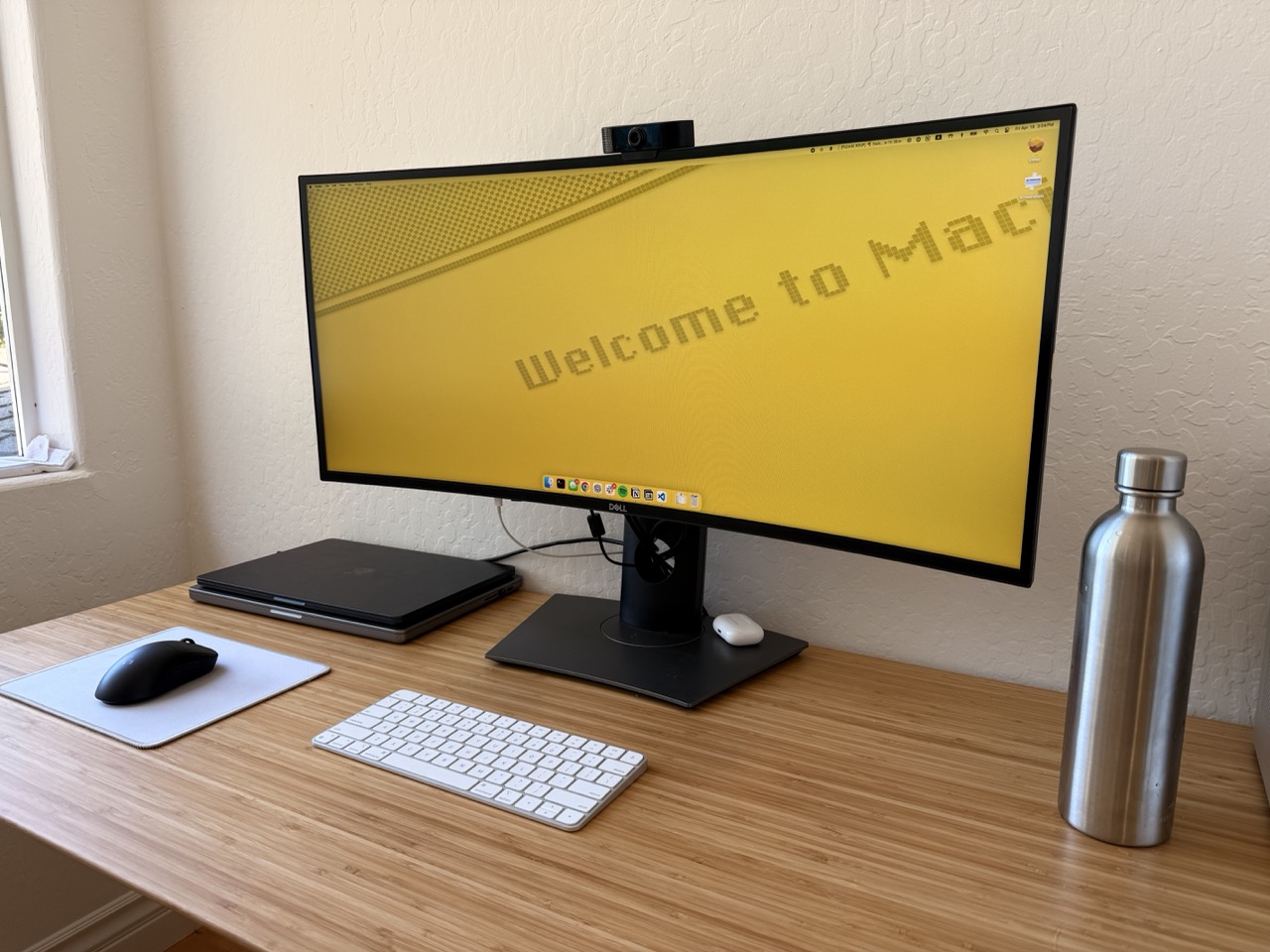
This keyboard is great for my purposes, although I can understand why it might not be others’ cup of tea. However, one minor gripe I have is that there is no right control key on the keyboard. This is pretty annoying, because since I mouse with my left hand, I typically rely heavily on the right-side control key for switching desktops in macOS. And given that I never use the right option key, it makes a great candidate for mapping to the right control button.
Sadly, Apple does provide a means of mapping modifier keys, but they aren’t specific to individual keys, meaning I can only map both option keys, or none.
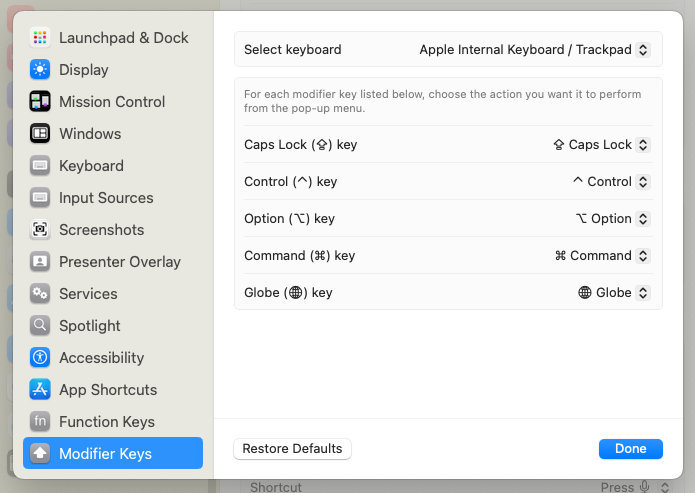
For things like this in the past, I used Karabiner-Elements, which always worked well, but was definitely way overkill for my needs. This time, I wanted something a little simpler, and something that I’d be able to run across my work computer without requiring a new Santa (binary authorization) allowlist rule or a system extension.
Fortunately, Apple provides an option that fits the bill. From a technical note written in 2017:
This Technical Note is for developers of key remapping software so that they can update their software to support macOS Sierra 10.12. We present 2 solutions for implementing key remapping functionality for macOS 10.12 in this Technical Note.
In that technical note, the two methods they describe are:
- Scripting Key Remapping: Using the
hidutilcommand-line tool - Programmatic Key Remapping: Using IOKit HID APIs
The first method will work perfectly for my use case. According to the Key Table Usages at the bottom, I would need to map the Usage ID of 0xE6 to 0xE0.
Using the example hidutil command provided, that looks something like this:
hidutil property --set '{"UserKeyMapping":[{"HIDKeyboardModifierMappingSrc":0x7000000E6,"HIDKeyboardModifierMappingDst":0x7000000E0}]}'
After running that in my terminal, I was able to confirm this would work.
However, this change will be lost upon reboot. To make this change persistent across reboots, I opted to use a LaunchAgent, which will issue the hidutil command upon each login.
To do this, I created ~/Library/LaunchAgents/com.sbenson.remapkeys.plist with the following content:
<?xml version="1.0" encoding="UTF-8"?>
<!DOCTYPE plist PUBLIC "-//Apple//DTD PLIST 1.0//EN"
                       "http://www.apple.com/DTDs/PropertyList-1.0.dtd">
<!-- See https://developer.apple.com/library/archive/technotes/tn2450/_index.html for more on HID key remapping -->

<plist version="1.0">
<dict>
    <key>Label</key>
    <string>com.sbenson.remapkeys</string>

    <key>ProgramArguments</key>
    <array>
        <string>/usr/bin/hidutil</string>
        <string>property</string>
        <string>--set</string>
        <string>{"UserKeyMapping":[{"HIDKeyboardModifierMappingSrc":0x7000000E6,"HIDKeyboardModifierMappingDst":0x7000000E0}]}</string>
    </array>

    <key>RunAtLoad</key>
    <true/>

    <key>StandardOutPath</key>
    <string>/tmp/remapkeys.out.log</string>

    <key>StandardErrorPath</key>
    <string>/tmp/remapkeys.err.log</string>
</dict>
</plist>
All I did next was reboot and confirm that my changes remained upon login.